















Old photographs hold emotional weight—but they often fade, lose detail, or exist only in black and white. For years, restoring or colorizing these images required professional tools like Photoshop and a steep learning curve. Today, AI has changed that equation.
Palette.fm is part of a new wave of AI-powered tools designed to automatically colorize and enhance old photos with minimal effort. Whether you’re a content creator, historian, marketer, or just someone looking to preserve family memories, tools like this can dramatically improve how you interact with visual history.
In this guide, you’ll learn how Palette.fm works, when it’s worth using, how to get the best results, and where it fits compared to alternatives.
Table of Contents
◉ Reader Roadmap ◉ What Is Palette.fm (and Why It Matters Now) ◉ How Palette.fm Works (Under the Hood) ◉ Step-by-Step: How to Use Palette.fm Effectively ◉ Practical Use Cases (Where Palette.fm Shines) ◉ Pros, Limitations, and Risk Awareness ◉ When NOT to Use Palette.fm ◉ Palette.fm vs Alternatives (Quick Decision Guide) ◉ Workflow Integration (Advanced Users) ◉ Common Mistakes (and How to Fix Them) ◉ FAQs ◉ Conclusion ◉ Sources
Reader Roadmap
• What Palette.fm actually does and how its AI works
• Step-by-step workflow to colorize photos effectively
• Real-world use cases (content, marketing, personal archives)
• Common mistakes and how to fix poor results
• Alternatives and when Palette.fm is NOT the right tool
What Is Palette.fm (and Why It Matters Now)
Palette.fm is an AI-driven photo colorization tool that transforms black-and-white images into realistic color versions using machine learning models trained on large datasets of historical and modern imagery.
Unlike traditional editing software, you don’t need to manually paint colors or understand layers. The AI predicts plausible colors based on context—skin tones, clothing, lighting, and environmental cues.
This matters because:
• AI removes technical barriers for non-designers
• Content teams can repurpose historical visuals quickly
• Archives and educators can present more engaging materials
• Social media creators can revive “forgotten” content
The shift is similar to what tools like ChatGPT did for writing—it democratizes a previously specialized skill.
How Palette.fm Works (Under the Hood)
At a high level, Palette.fm uses deep learning models trained on millions of images. These models recognize patterns such as:
• Human skin tones across lighting conditions
• Fabric types and likely color palettes
• Natural environments (sky, trees, buildings)
• Historical visual patterns (e.g., older uniforms, film tones)
When you upload an image, the system:
1. Analyzes objects and context
2. Predicts color probabilities per pixel
3. Applies a consistent color mapping
4. Allows optional adjustments via prompts or presets
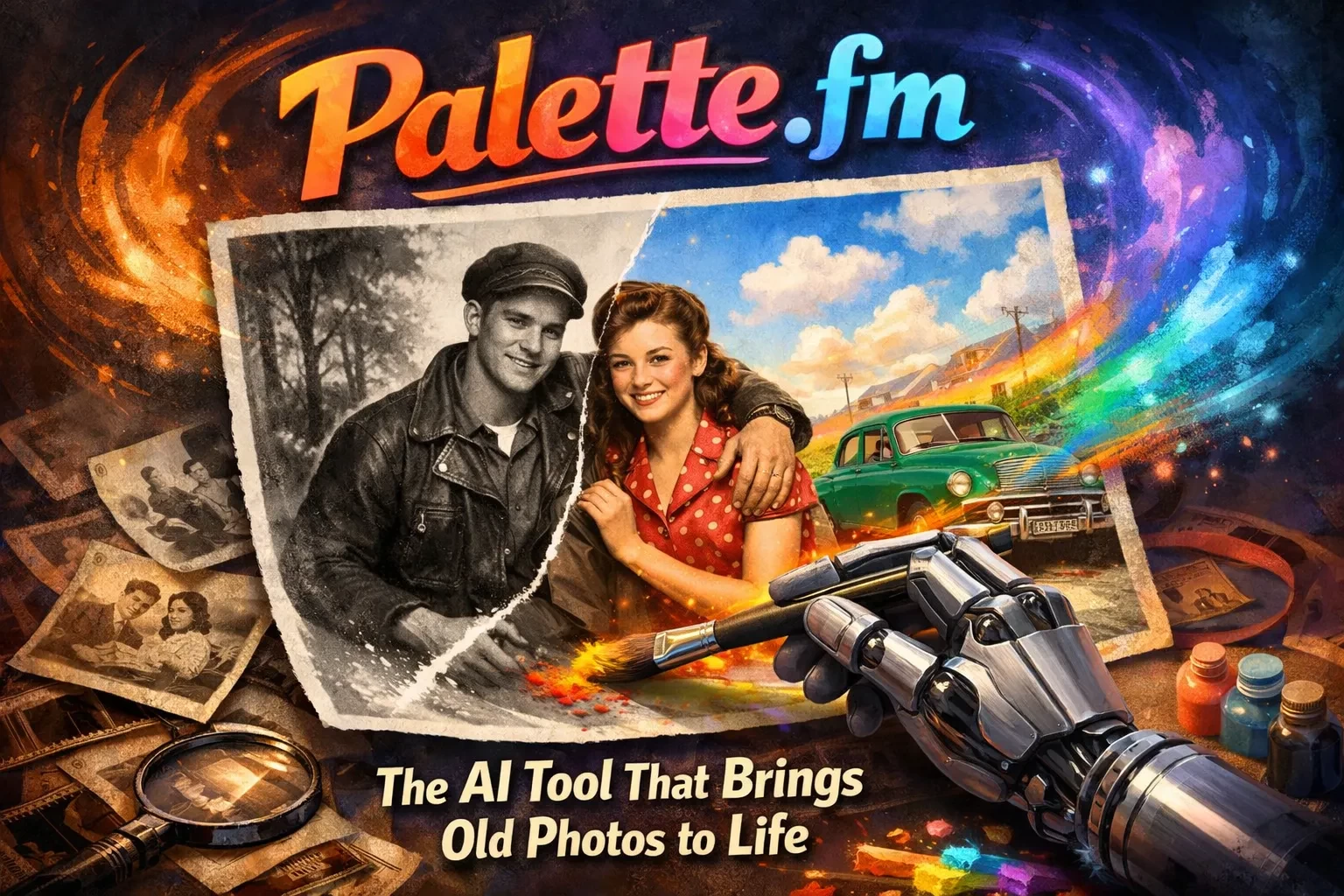
The image above would typically show a before-and-after transformation—this is critical because it illustrates how AI interprets visual data rather than simply applying filters.
Step-by-Step: How to Use Palette.fm Effectively
If you’re new to AI photo tools, follow this workflow to get reliable results.
1. Upload a High-Quality Image
• Use the highest resolution available
• Avoid heavily compressed or blurry files
• Scan physical photos at 300 DPI if possible
Low-quality inputs lead to unrealistic outputs—AI can’t invent detail that isn’t there.
2. Let the AI Generate Initial Colors
Once uploaded, Palette.fm automatically processes the image.
• No manual setup required
• Results typically appear within seconds
• Multiple color variants may be suggested
3. Refine with Text Prompts (Advanced Feature)
One of Palette.fm’s standout features is prompt-based control.
You can guide the AI using descriptions like:
• “Warm sunset lighting”
• “Vintage 1950s color tones”
• “Natural skin tones, muted colors”
This is similar to prompting in generative AI tools—you’re influencing the output without editing pixels directly.
4. Compare Variations Before Downloading
Don’t settle for the first result.
• Test multiple styles
• Look for consistency in skin tones and lighting
• Check background realism
5. Export in the Right Format
• Use PNG for quality preservation
• Use JPEG for web/social media
• Keep original files for reprocessing later
The interface visualization here helps you understand how quickly you can iterate across multiple outputs—a key productivity advantage.
Practical Use Cases (Where Palette.fm Shines)
1. Content Marketing & Blogging
• Turn archival images into engaging visuals
• Improve click-through rates on historical content
• Create “before vs after” storytelling posts
2. Social Media Creators
• Revive vintage photos for Instagram or TikTok
• Build storytelling threads using restored imagery
• Stand out in feeds dominated by modern visuals
3. Family & Personal Archives
• Restore old family albums
• Digitize and enhance printed photographs
• Preserve memories for future generations
4. Education & History Projects
• Make historical figures more relatable
• Enhance presentations with realistic visuals
• Improve student engagement
Pros, Limitations, and Risk Awareness
Advantages
• Fast, no design skills required
• High-quality outputs for many scenarios
• Prompt-based customization adds flexibility
• Scalable for bulk content workflows
Limitations
• Not always historically accurate
• Can misinterpret unusual objects or clothing
• Less control than manual editing tools
• Requires trial-and-error for best results
Risk Consideration: Accuracy vs Aesthetics
AI colorization is interpretative, not factual.
If you’re working with:
• Historical documentation
• Journalism
• Educational materials
You should clearly disclose that colors are AI-generated approximations.
When NOT to Use Palette.fm
This is where many users go wrong.
Avoid using it when:
• You need scientifically or historically accurate colors
• The image contains rare or unknown objects
• You require pixel-perfect control (use Photoshop instead)
• The image is extremely low resolution
In these cases, manual restoration or hybrid workflows are more reliable.
Palette.fm vs Alternatives (Quick Decision Guide)
| Tool | Best For | Key Difference |
|---|---|---|
| Palette.fm | Fast AI colorization | Prompt-based control |
| Photoshop (manual) | Precision editing | Full control, slower |
| DeOldify (open-source) | Developers | Requires setup |
| Remini | Mobile enhancement | Less color control |
Use Palette.fm when speed + simplicity matter more than precision.
Workflow Integration (Advanced Users)
If you’re building a content pipeline, Palette.fm can fit into a broader workflow:
• Scan → AI colorize → Upscale → Publish
• Archive → Restore → Reuse in campaigns
• Blog → Add visual storytelling → Increase engagement
This type of workflow diagram highlights how AI tools are becoming part of modern content production systems—not just standalone utilities.
Common Mistakes (and How to Fix Them)
Mistake 1: Using Low-Quality Inputs
Fix: Always start with the best possible scan or image.
Mistake 2: Overtrusting the First Output
Fix: Generate multiple variations and compare.
Mistake 3: Ignoring Prompt Refinement
Fix: Use descriptive prompts to guide tone and realism.
Mistake 4: Expecting Historical Accuracy
Fix: Treat results as artistic interpretations unless verified.
Mistake 5: Overusing Saturation
Fix: Aim for natural tones—less is often more.
FAQs
Conclusion: Should You Use Palette.fm?
Palette.fm is a powerful example of how AI is reshaping creative workflows. It won’t replace professional restoration tools, but it dramatically lowers the barrier to entry for photo enhancement.
If your goal is to:
• Quickly revive old images
• Enhance storytelling with visuals
• Improve engagement across content channels
Then it’s absolutely worth testing.
Quick Checklist Before You Start
• Use high-resolution images
• Test multiple color variations
• Apply prompts for better results
• Validate accuracy if needed
• Export in the right format
The real value isn’t just in colorizing photos—it’s in unlocking new ways to use visual history in modern digital content.
Sources
• Palette.fm Official Website — https://palette.fm
• MIT Technology Review — https://www.technologyreview.com
• Adobe Documentation (Photoshop tools) — https://helpx.adobe.com
• Stanford AI Lab (general AI vision research context) — https://ai.stanford.edu